How to download in Google Chrome
When you download a GyeokSang program (.exe) in Chrome, the download may be blocked with a message such as "This file may be dangerous". It means the file is new and has not been downloaded often, so Chrome Safe Browsing can't confirm it yet.
Try this first: open the downloads list (Ctrl+J). If there is a [Keep] or [Download] button next to the blocked file, click it. Use the steps below only if there is no such button.
Open the ⋮ menu at the top right of Chrome and choose [Settings].
![[Settings] in the Chrome menu](/_astro/step1-settings.BZc1VDot_ZeU7Qw.webp)
In the left list, choose [Privacy and security].
![[Privacy and security] in the left list of Settings](/_astro/step2-privacy.BplEbmA1_Z1U7rE5.webp)
Choose [Security].
![[Security] under Privacy and security](/_astro/step3-security.D0liozga_2g0Shu.webp)
Under Safe Browsing, change from ① Standard protection to ② No protection (not recommended), then download the program again.
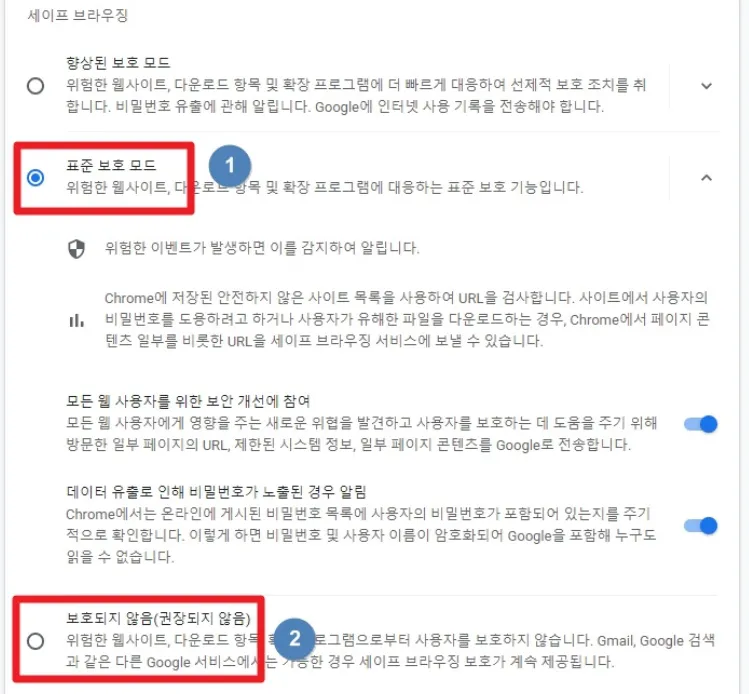
As soon as the download finishes, switch back to ① [Standard protection] on the same screen. While it is set to No protection, Chrome does not block dangerous sites and files.
If GyeokSang's programs and guides helped you, you can support us with a coffee.
The screenshots show Chrome in Korean. The layout may differ slightly depending on your Chrome version.
If Windows shows a warning when you run the file, follow "If Windows shows a warning" on the program's page.